Video is the most engaging content format online, but it's also the hardest to search, quote, and repurpose. Converting an MP4 or MOV video to text solves all three problems at once. With a free video to text converter, you can extract every spoken word from a tutorial, webinar, interview, or vlog and turn it into a blog post, social thread, or searchable archive. This guide shows exactly how the process works and how creators can build it into their content pipeline.
How video to text conversion works
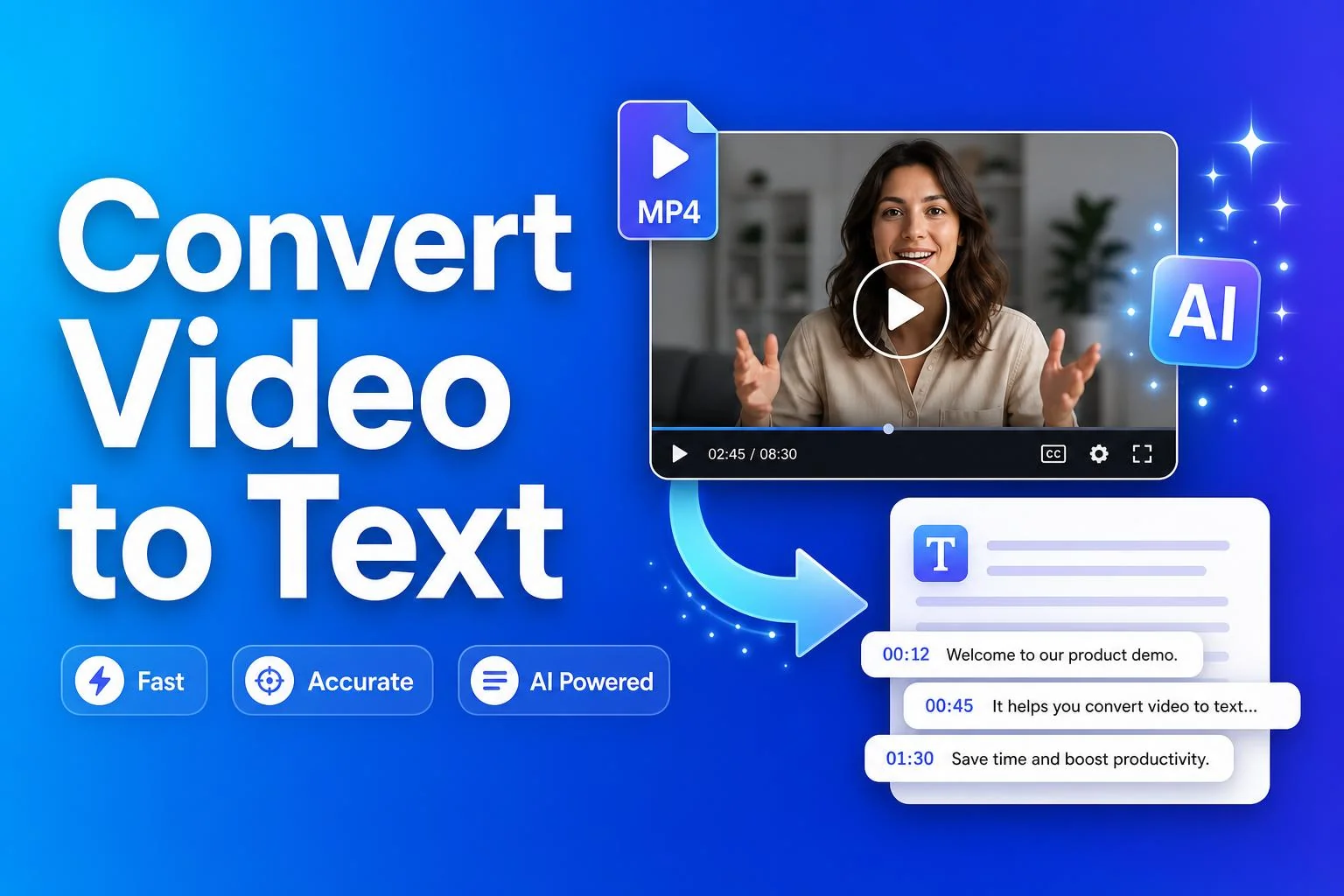
A video to text converter works in two stages. First, it extracts the audio track from your MP4 or MOV file. Then it runs that audio through the same AI speech recognition engine used for audio transcription, producing a clean, punctuated transcript of everything spoken in the video. The entire process happens in the cloud and takes roughly the same time as the video's duration — often faster.
Because the tool only processes the audio track, video quality does not affect transcript accuracy. A 720p file with clear audio will produce a better transcript than a 4K file with echo and background noise. Focus on audio clarity when recording if you plan to transcribe later.
Supported video formats
SnapFetch's Video to Text Converter accepts MP4, MOV and WEBM files up to 20 MB. MP4 is the universal standard for web video and works on virtually every device. MOV is Apple's native format and common among creators who edit in Final Cut Pro. WEBM is increasingly popular for web exports. As long as the file contains a clear audio track, the converter can process it.
Ways to use video transcripts
- Turn tutorial videos into written blog posts or documentation pages.
- Extract quotes from interviews for social media and press releases.
- Create captions and subtitles for accessibility and multi-language audiences.
- Build searchable archives of webinars and team meetings.
- Repurpose long-form video into Twitter threads, LinkedIn posts, and newsletters.
Tips for the most accurate video transcripts
Record in a quiet environment. Background music, traffic noise, and room echo are the three biggest sources of transcription errors. If you're screen-recording a tutorial, use a dedicated microphone rather than your laptop's built-in mic. For interviews, ask participants to use headphones to prevent audio bleed. Finally, trim intros and outros that contain only music — silent sections add nothing to the transcript and can occasionally confuse the model.
Ready to try it yourself?
Jump straight into the tool — free, no sign-up.